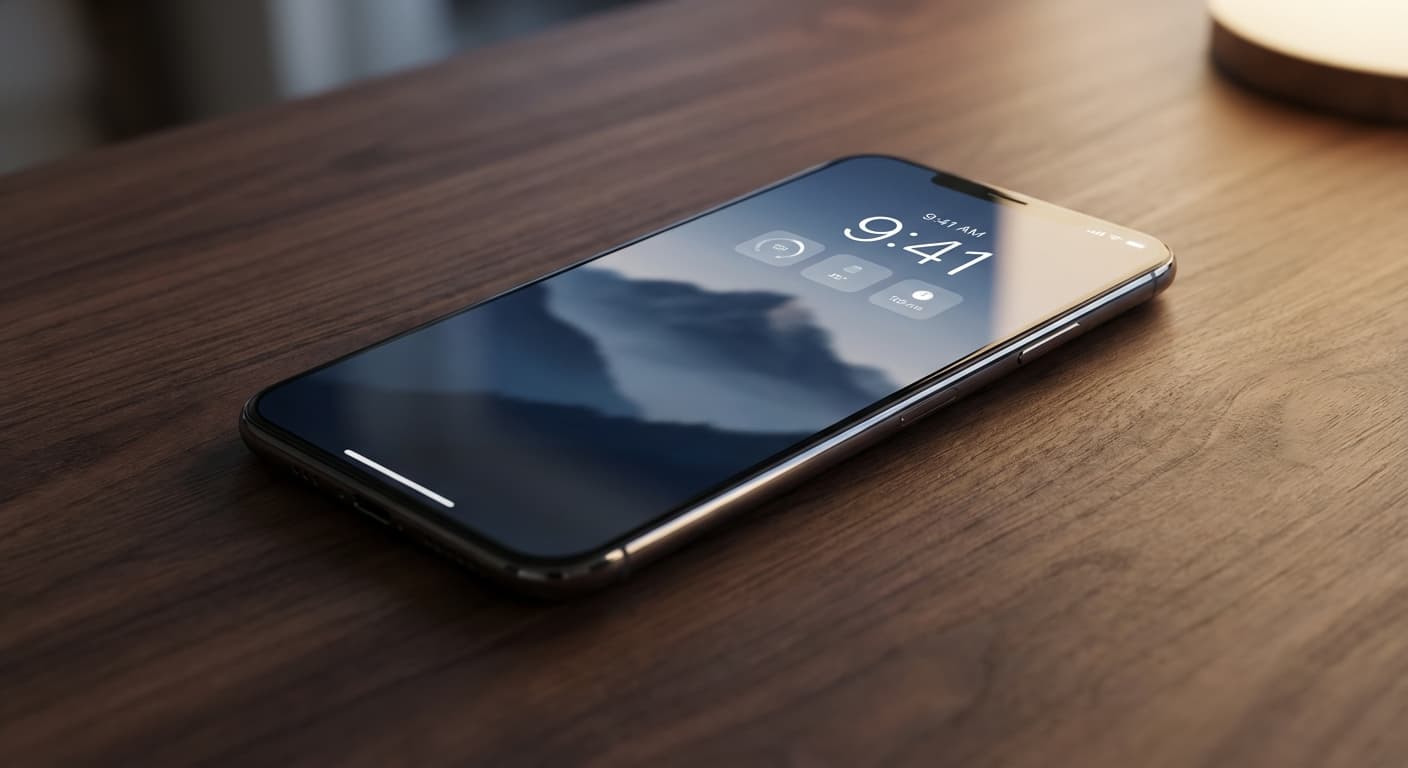
The Core Concept
The Zero-Unlock Strategy is simple: Place your critical data on the outside of your phone. If you have to swipe up and hunt for your to-do list, you have already lost the battle against distraction.
The Most Undervalued Digital Real Estate in Your Pocket
The average user unlocks their phone 58 times a day. While 70% of these interactions are intended to be under 2 minutes, they often trigger unintentional 30-minute scroll sessions.
We've all been there. You pick up your phone to check a grocery list or a deadline. You unlock the device. Suddenly, muscle memory takes over. Your thumb hovers over Instagram or TikTok. Twenty minutes later, you snap out of a trance, having completely forgotten why you picked up the phone in the first place.
This is the distraction loop. The solution isn't just willpower; it's design.
Your lock screen is currently a barrier, but it should be a dashboard. By implementing smart lock screen productivity tips, you can access necessary data without ever opening the device. This is where apps like NoteWall transition from simple utilities to essential infrastructure for your attention span.
The Psychology of a Productive Lock Screen
Productivity is largely about managing friction. The goal is to increase friction for bad habits (like burying social apps in folders) and decrease friction for good habits (putting goals front and center).
The concept here is Glanceability. If you have to interact with an app to see your priorities, that is active work. If you simply tap your screen to wake it and see your top three goals, that is passive reinforcement. This visual anchoring keeps your brain aligned with your intentions before the dopamine hit from social media can derail you.
Strategy 1: The “Zero-Unlock” Dashboard
To stop the scroll, you need to bring the inside out. Your lock screen needs to tell you exactly what is next.
While standard widgets for weather and calendars are useful, they often lack urgency. They show you the date, but not what you need to do. This is why NoteWall is superior to standard notes apps. It allows you to pin high-priority text directly to your lock screen via Live Activities or dedicated wallpapers.
Instead of a generic list, your phone wakes up and boldly declares: "FINISH THE Q3 REPORT."
Use the NoteWall shortcut integration to update your lock screen text instantly without even opening the app. This creates a friction-free loop for capturing thoughts on the fly.
Strategy 2: Visual Anchoring with Wallpapers
Most people use photos of pets or sunsets as wallpapers. While nice, these are missed opportunities for productivity.
Visual Anchoring uses your background image to reinforce your identity. A minimalist wallpaper reduces cognitive load, but a functional wallpaper changes behavior. By using NoteWall, you can generate wallpapers that have your critical reminders baked right into the aesthetic.
This is particularly vital for individuals with ADHD who may struggle with object permanence. If the task isn't visually present, it often ceases to exist. NoteWall ensures the task is always staring right back at you.
Strategy 3: Notification Hygiene & Focus Modes
A productive dashboard is useless if it's covered in notifications from Uber Eats and Gmail. You must aggressively batch your notifications.
iOS Focus Modes are your best friend here. You can set up a "Deep Work" mode that hides all notifications but keeps your NoteWall widget visible. This ensures that when you check your phone, you see your goals, not your distractions.
Audit Notifications: Go to Settings and turn off lock screen previews for everything except essential communication apps.
Create a Work Focus: Link a specific, minimalist lock screen to this focus mode.
Install NoteWall: Add the NoteWall widget to this specific Focus screen to keep your current task front and center.
Enable Scheduled Summary: Batch non-urgent alerts to arrive at 8 AM and 6 PM only.
Strategy 4: The Launchpad (Shortcuts)
For the times you do need to unlock your phone, make sure you land exactly where you need to be. iOS now allows you to customize the bottom lock screen buttons (formerly reserved for Flashlight and Camera).
Swap one of these for a Quick Capture shortcut. You can configure this to launch a NoteWall prompt, allowing you to type a reminder that immediately gets pinned to your lock screen. This closes the loop: You have a thought, you capture it, and it immediately becomes your visual anchor.
Why NoteWall is the Missing Link
There are plenty of complex to-do lists and project management tools. But they all suffer from the same flaw: they live hidden inside the phone.
NoteWall is different because it lives on the surface. It is designed specifically for the Zero-Unlock Strategy. It is the bridge between thinking about a task and seeing it constantly.
Whether you are a student needing to memorize formulas, a professional tracking KPIs, or a digital minimalist trying to reduce screen time, NoteWall turns your wallpaper into a tool rather than just a decoration.
Keep Reading: If you found this helpful, check out these related guides:
Unlock Your iPhone's Potential: Custom Wallpapers with Notes for Peak Productivity
Lock Screen To-Do Lists in 2026: Unlock Peak Productivity (Without Unlocking Your Phone!)
Future-Proof Your Memory: Unlocking Hyper-Personalized Lock Screen Reminders with iOS 2026 & AI
For a comprehensive overview, visit our Lock Screen Productivity Guide.
Reclaim Your Attention Span
Stop letting your lock screen be a gateway to distraction. Make it your productivity dashboard today.
Download NoteWall on App Store
Karol Billik
Founder of NoteWall. Building tools that turn your lock screen into a productivity system.
You might also like
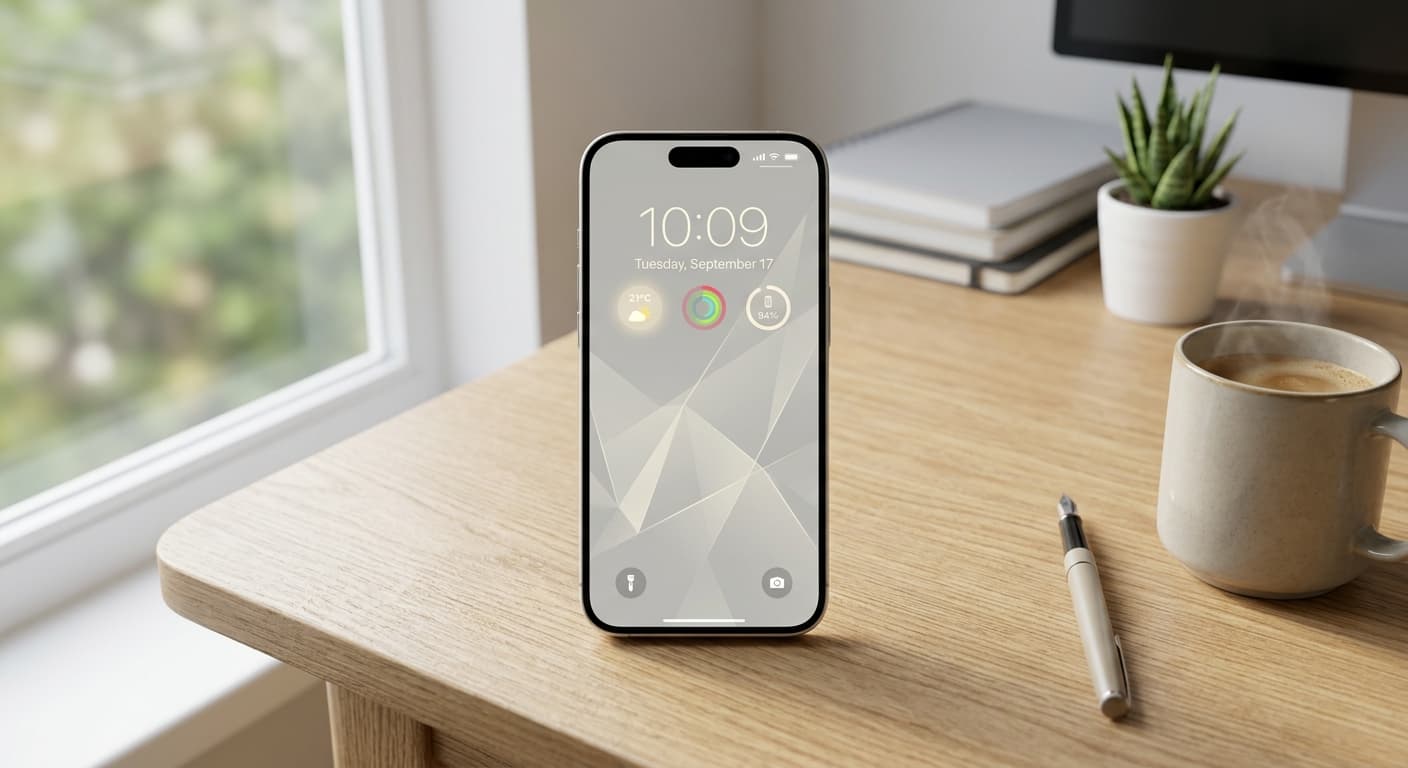
Unlock Focus: Master Your Minimalist iPhone Lock Screen with iOS 19/20
Transform your iPhone lock screen into a minimalist powerhouse with iOS 19/20. Boost focus, reduce distractions, and enhance digital well-being in 2026.
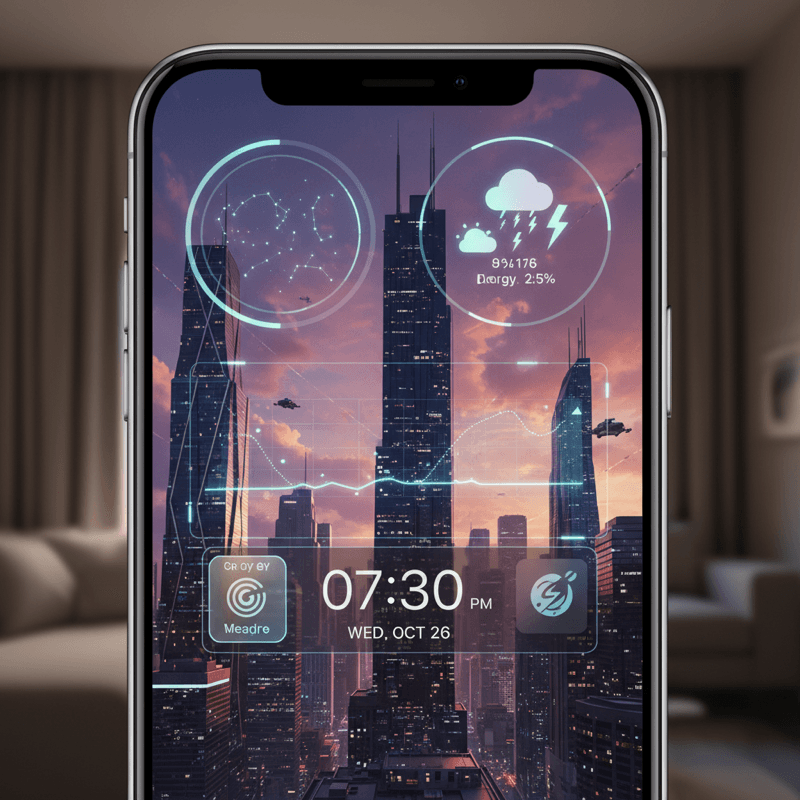
Future-Proof Your iPhone: Lock Screen Customization Secrets for 2026
Unlock the full potential of your iPhone lock screen! Dive into advanced customization, trending aesthetics, and productivity hacks. Future-proof your device now!
Unlock Productivity: The Best Lock Screen Apps for iPhone
Transform your iPhone's lock screen into a productivity powerhouse! Discover the best lock screen apps to boost focus and achieve your goals. Get more done!